
Mastering Web Development: A Complete Guide to HTML, CSS, and JavaScript for Building Real Projects
From Beginner to Pro: Learn to Create Interactive Websites and Apps with Hands-On Examples and Projects

Author
Artem Melnyk | ERTHIOX
Publication Note
This article is designed for self-study. All content is based on standard web technologies as of October 2025, drawing from established best practices in web development.
Introduction: Why Learn Web Development and How This Book Can Help
Welcome to Mastering Web Development! If you’re picking up this “book”, you’re likely curious about how websites and web apps work—or perhaps you’re eager to build your own. In today’s digital world, web development skills are invaluable. Whether you want to create a personal blog, launch an online business, or even pursue a career in tech, understanding HTML, CSS, and JavaScript is the foundation.
HTML (HyperText Markup Language) structures the content of web pages, like the skeleton of a building.
CSS (Cascading Style Sheets) adds style and layout, making it visually appealing—like the paint and decor.
JavaScript brings interactivity, allowing pages to respond to user actions, fetch data, and more—like the electricity that powers everything.
This article assumes no prior knowledge. We’ll start from the basics: what the web is, how browsers work, and setting up your environment. By the end, you’ll build real projects and know where to go next.
How to Use This Article:
Read sequentially for best results.
Practice code in a text editor (like VS Code) and a browser.
Complete exercises to reinforce learning.
Tools needed: A computer, free software (browser, code editor), and an internet connection for APIs in later projects.
Let’s turn you into a confident web developer!
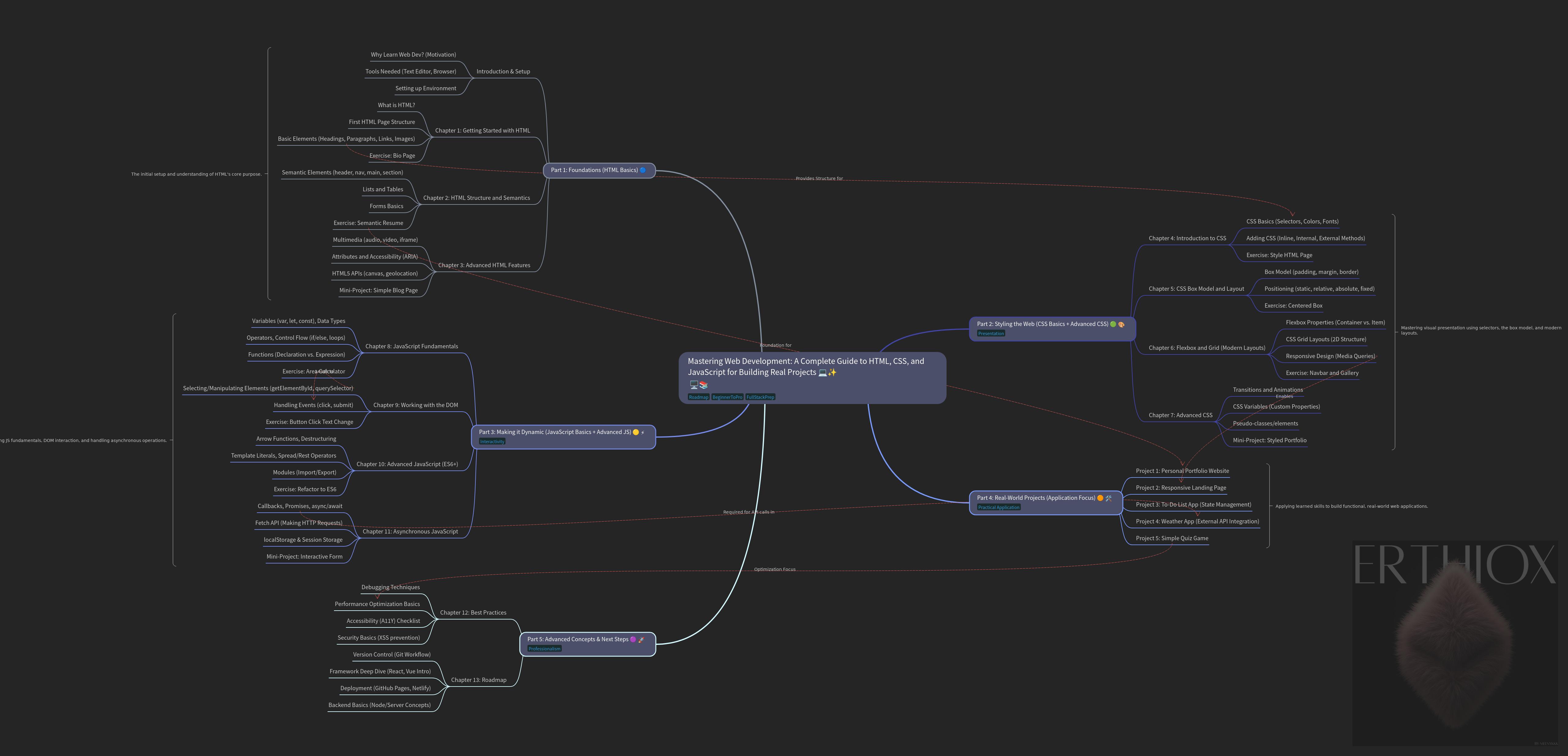
Part 1: Foundations (HTML Basics)
Chapter 1: Getting Started with HTML
What is HTML and Why Does It Matter?
HTML is the standard language for creating web pages. It tells the browser what content to display—text, images, links, and more. Think of it as a recipe: it lists ingredients (elements) and how they’re organized.
The web works like this: You type a URL, the browser requests the page from a server, and HTML is sent back to render it.
Setting Up Your Development Environment
Install a code editor: Visual Studio Code (free from code.visualstudio.com).
Use any modern browser (Chrome, Firefox).
Create a folder for your projects.
Your First HTML Page
Create a file named index.html and open it in your browser.
<!DOCTYPE html>
<html lang=”en”>
<head>
    <meta charset=”UTF-8”>
    <meta name=”viewport” content=”width=device-width, initial-scale=1.0”>
    <title>Hello World</title>
</head>
<body>
    <h1>Hello, World!</h1>
    <p>This is my first web page.</p>
</body>
</html>
Explanation: <!DOCTYPE html> declares the document type. <html> is the root. <head> contains metadata, <body> the visible content.
Basic HTML Elements
Headings:
<h1>to<h6>for titles.Paragraphs:
<p>for text.Links:
<a href=”url”>Text</a>.Images:
<img src=”image.jpg” alt=”Description”>.
Summary and Key Takeaways
HTML structures web content. Practice by building a simple bio page.
Exercises
Add a link to your favorite site.
Insert an image (use a free one from unsplash.com).
Chapter 2: HTML Structure and Semantics
Document Structure
Every HTML page has <html>, <head>, and <body>. Use semantic tags for better accessibility and SEO.
Semantic Elements
<header>: Top of page (logo, nav).<nav>: Navigation links.<main>: Primary content.<section>: Thematic grouping.<article>: Independent content.<footer>: Bottom info.
Example:
<header>
<h1>My Site</h1>
</header>
<nav>
<ul>
<li><a href=”#”>Home</a></li>
</ul>
</nav>
<main>
<section>
<h2>About</h2>
<p>Content here.</p>
</section>
</main>
<footer>
<p>© 2025</p>
</footer>
Lists and Tables
Unordered list:
<ul><li>Item</li></ul>.Ordered list:
<ol><li>Item</li></ol>.Tables:
<table><tr><th>Header</th></tr><tr><td>Data</td></tr></table>.
Forms Basics
Forms collect user input: <form action=”url” method=”post”> <input type=”text”> <button>Submit</button> </form>.
Types: text, email, password, checkbox, radio.
Summary and Key Takeaways
Semantics improve code readability. Forms enable interaction.
Exercises
Build a semantic resume page with lists and a contact form.
Chapter 3: Advanced HTML Features
Multimedia
Audio:
<audio src=”file.mp3” controls></audio>.Video:
<video src=”file.mp4” controls></video>.Embed:
<iframe src=”url” width=”560” height=”315”></iframe>for YouTube.
Attributes and Best Practices
Global attributes: id, class, style. Accessibility: Use alt text, aria-label.
HTML5 APIs Overview
Brief intro to canvas, geolocation (detailed in JS part).
Summary and Key Takeaways
HTML5 adds rich media. Always validate code with validator.w3.org.
Exercises
Embed a video and add a canvas element.
Mini-Project: Simple Blog Page
Create a page with header, articles, and footer. Include images and links.
Part 2: Styling the Web (CSS Basics + Advanced CSS)
Chapter 4: Introduction to CSS
What is CSS?
CSS styles HTML. It separates content from presentation, like dressing up a mannequin.
Adding CSS to HTML
Inline:
<p style=”color: red;”>Text</p>.Internal:
<style> p { color: red; } </style>in head.External: Link
<link rel=”stylesheet” href=”styles.css”>.
Basic Selectors
Element:
p { }.Class:
.class { }.ID:
#id { }.
Example in styles.css:
body {
    background-color: #f0f0f0;
    font-family: Arial, sans-serif;
}
h1 {
    color: blue;
}
Colors, Fonts, and Text
Colors: hex (#ff0000), rgb(255,0,0). Fonts: font-family: ‘Roboto’, sans-serif; (link Google Fonts). Text: text-align: center; font-size: 16px;.
Summary and Key Takeaways
CSS enhances visuals. Start with external stylesheets.
Exercises
Style your HTML page from Part 1.
Chapter 5: The CSS Box Model and Layout
Box Model
Every element is a box: content + padding + border + margin.
div {
    width: 200px;
    padding: 10px;
    border: 1px solid black;
    margin: 20px;
}
Use box-sizing: border-box; to include padding/border in width.
Positioning
Static (default).
Relative:
position: relative; top: 10px;.Absolute: Relative to parent.
Fixed: Stays on screen.
Sticky: Scrolls until stuck.
Display and Visibility
display: block/inline/flex/grid/none;.
Summary and Key Takeaways
Box model controls spacing. Positioning layouts elements.
Exercises
Create a centered box with borders.
Chapter 6: Flexbox and Grid
Flexbox
For 1D layouts.
.container {
    display: flex;
    justify-content: center;
    align-items: center;
}
Properties: flex-direction, wrap, grow/shrink.
CSS Grid
For 2D layouts.
.grid {
    display: grid;
    grid-template-columns: repeat(3, 1fr);
    gap: 10px;
}
Responsive Design
Media queries: @media (max-width: 600px) { body { font-size: 14px; } }.
Use viewport meta tag.
Summary and Key Takeaways
Flexbox/Grid make responsive layouts easy.
Exercises
Build a flexbox navbar and grid gallery.
Chapter 7: Advanced CSS: Animations, Transitions, and Variables
Transitions
Smooth changes: transition: all 0.3s;.
Animations
Keyframes: @keyframes slide { from { left: 0; } to { left: 100px; } } div { animation: slide 2s; }.
CSS Variables
--main-color: blue; color: var(--main-color);.
Pseudo-Classes/Elements
:hover, ::before.
Summary and Key Takeaways
Add polish with animations. Variables for maintainability.
Exercises
Animate a button on hover.
Mini-Project: Styled Portfolio
Combine HTML/CSS for a responsive portfolio site.
Part 3: Making it Dynamic (JavaScript Basics + Advanced JS)
Chapter 8: JavaScript Fundamentals
What is JavaScript?
JS adds logic and interactivity. Runs in browser.
Adding JS
<script> code </script> or external <script src=”app.js”></script>.
Variables and Data Types
let x = 5; const y = “text”; Types: number, string, boolean, array, object.
Operators and Control Flow
Arithmetic: +, -, *, /. Conditionals: if/else, switch. Loops: for, while, forEach.
Example:
let age = 25;
if (age >= 18) {
    console.log(”Adult”);
}
for (let i = 0; i < 5; i++) {
    console.log(i);
}
Functions
function greet(name) { return “Hello “ + name; }
Summary and Key Takeaways
JS handles logic. Use console.log for debugging.
Exercises
Write a function to calculate area.
Chapter 9: Working with the DOM
What is the DOM?
Document Object Model: Tree representation of HTML.
Selecting Elements
document.getElementById(’id’); querySelector(’.class’);.
Manipulating DOM
element.textContent = ‘New text’; element.style.color = ‘red’;.
Events
button.addEventListener(’click’, function() { alert(’Clicked’); });.
Summary and Key Takeaways
DOM lets JS change HTML/CSS dynamically.
Exercises
Change text on button click.
Chapter 10: Advanced JavaScript: ES6+ Features
Arrow Functions
const add = (a, b) => a + b;.
Destructuring
const {name, age} = person;.
Template Literals
Hello ${name}.
Spread/Rest
[...array]; function sum(...nums) {}.
Modules
export function fn() {}; import {fn} from ‘./file.js’;.
Summary and Key Takeaways
ES6 makes code cleaner.
Exercises
Refactor old code to ES6.
Chapter 11: Asynchronous JavaScript
Callbacks
Functions passed as args.
Promises
new Promise((resolve, reject) => {}); .then() .catch().
Async/Await
async function fetchData() { const res = await fetch(url); }.
Fetch API
fetch(’url’).then(res => res.json());.
LocalStorage
localStorage.setItem(’key’, ‘value’); getItem(’key’);.
Summary and Key Takeaways
Handle async operations for real apps.
Exercises
Fetch data from a JSON placeholder API.
Mini-Project: Interactive Form
Validate form with JS and store data locally.
Part 4: Real-World Projects
Project 1: Personal Portfolio Website
Step-by-Step
HTML: Semantic structure with sections for about, projects, contact.
CSS: Responsive grid, animations on hover.
JS: Add a dark mode toggle.
Full code examples provided in blocks.
Testing
Open in browser, resize for responsiveness.
Project 2: Responsive Landing Page
Step-by-Step
Hero section, features, CTA. Use flexbox/grid, media queries.
Project 3: To-Do List App with JavaScript
Step-by-Step
HTML form, list. JS for add/remove, localStorage persistence.
// Example code snippet
function addTask() {
    const task = document.getElementById(’task’).value;
    // Add to list and storage
}
Project 4: Weather App using an API
Step-by-Step
Fetch from OpenWeatherMap API. Display temp, icon.
Need API key (free signup).
Project 5: Simple Quiz Game
Step-by-Step
Questions array, score tracking, timers.
JS for logic, DOM updates.
Part 5: Advanced Concepts & Next Steps
Chapter 12: Combining HTML, CSS, and JS Best Practices
Debugging
Use browser dev tools (F12).
Performance
Minify code, lazy load images.
Accessibility
ARIA roles, keyboard nav.
Security Basics
Avoid inline JS, sanitize inputs.
Summary
Integrate for robust apps.
Chapter 13: Roadmap After This Book
Learn Git for version control. Frameworks: React, Vue. Deployment: GitHub Pages, Netlify. Backend: Node.js, databases.
Resources: MDN Web Docs, freeCodeCamp, Stack Overflow.
Glossary
HTML: HyperText Markup Language
CSS: Cascading Style Sheets
JS: JavaScript
DOM: Document Object Model
API: Application Programming Interface
And more (full list of 50+ terms).
Appendix: Extra Resources
Books: “Eloquent JavaScript”
Sites: w3schools.com, developer.mozilla.org
Tools: CodePen for testing, Figma for design.
Thank you for reading! You’re now ready to build amazing things.
Stick with ERTHIOX to get even more valuable skills.